Connect before you start
Connect the Mobile Mouse Wi-Fi app to Mobile Mouse Server on your Mac or Windows PC. Test the normal trackpad first so you know the connection works. The dedicated Bluetooth app also includes an Air Mouse mode; its connection setup is separate.
Move the pointer in the Wi-Fi app
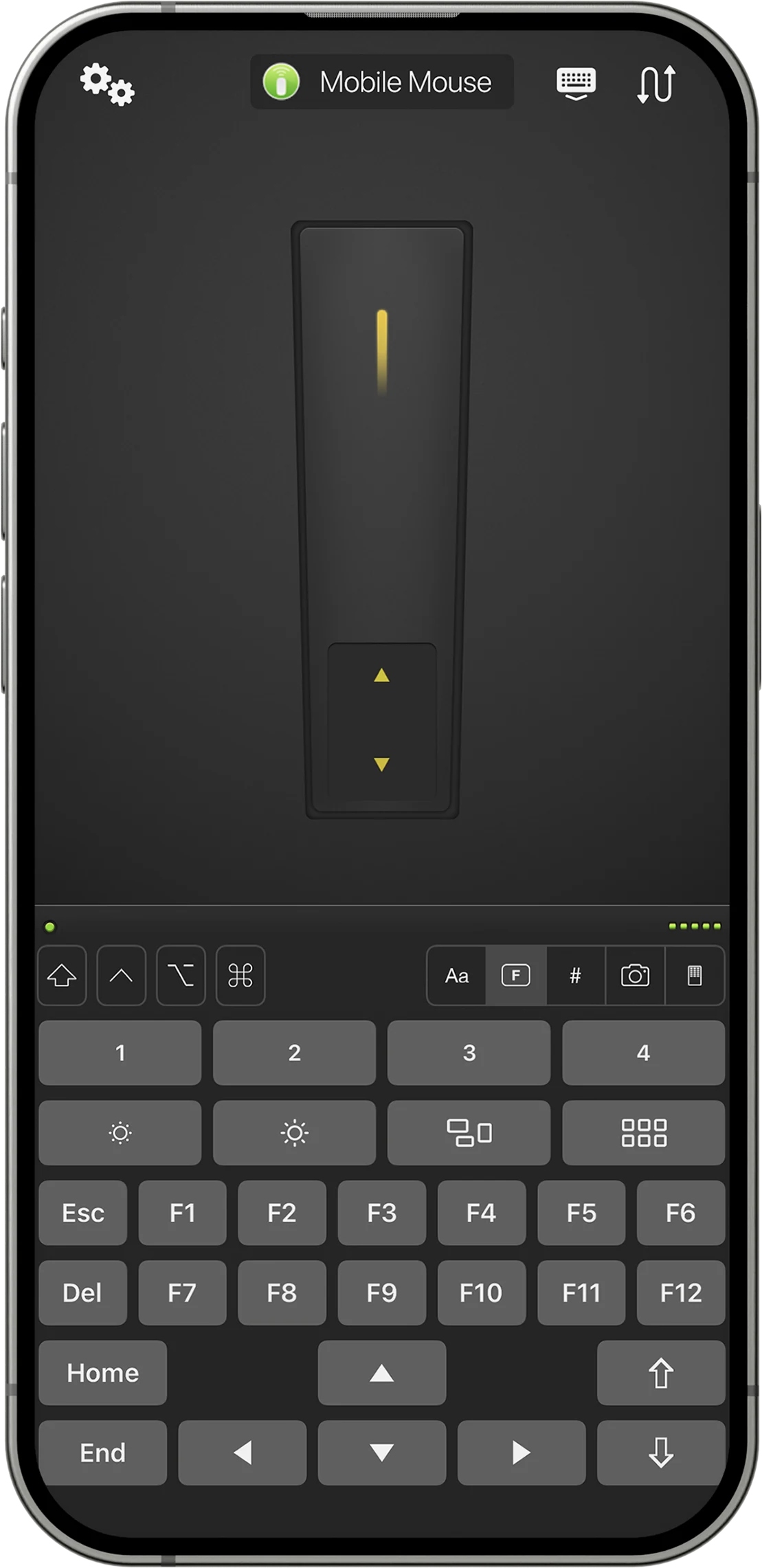
- Open the in-air mouse control.
- Point the phone toward your computer and hold the trigger.
- Move your hand to move the pointer. Release the trigger to reposition your hand without moving the cursor.
- Tap the trigger to click. For dragging, hold a mouse button while moving.
- Use the scroll control or switch back to the trackpad for precise work.
Adjust sensitivity
Mobile Mouse Server’s Air Motion settings control pointer speed and acceleration. Start with small movements, then adjust horizontal and vertical speed to fit your screen and viewing distance. Higher speed covers more screen with less movement; lower speed can make selecting small controls easier.
Present with the right controls
Use Air Mouse when you need to select items anywhere on screen. For moving between slides, the dedicated presentation controls can be easier: they provide large Previous, Next and Start/Stop controls. See the control-mode guide. Air Mouse moves the on-screen cursor; it is not a physical laser pointer.
Find your connection.
See what each version needs, then follow the setup for your device.
Compare versions Get connection help →