Choose the Bluetooth app
For an iPhone controlling an iPad, use Mobile Mouse Bluetooth. The Wi-Fi version’s desktop server is for Mac and Windows; installing that version alone does not turn your iPad into a supported desktop-server target.
The controlling iPhone needs iOS 17.6 or later, and the target iPad needs iPadOS 17.6 or later. Keep both devices nearby, with Bluetooth on. Check the current App Store listing for requirements and trial terms.
Pair your iPhone with your iPad
- Install Mobile Mouse Bluetooth on the iPhone that will act as your mouse.
- Open the app’s settings, tap Add Device and choose the iPad device type.
- On the iPad you want to control, open Settings → Bluetooth and keep it awake and unlocked.
- When the iPad appears in the app’s device list, select it and complete any pairing prompts.
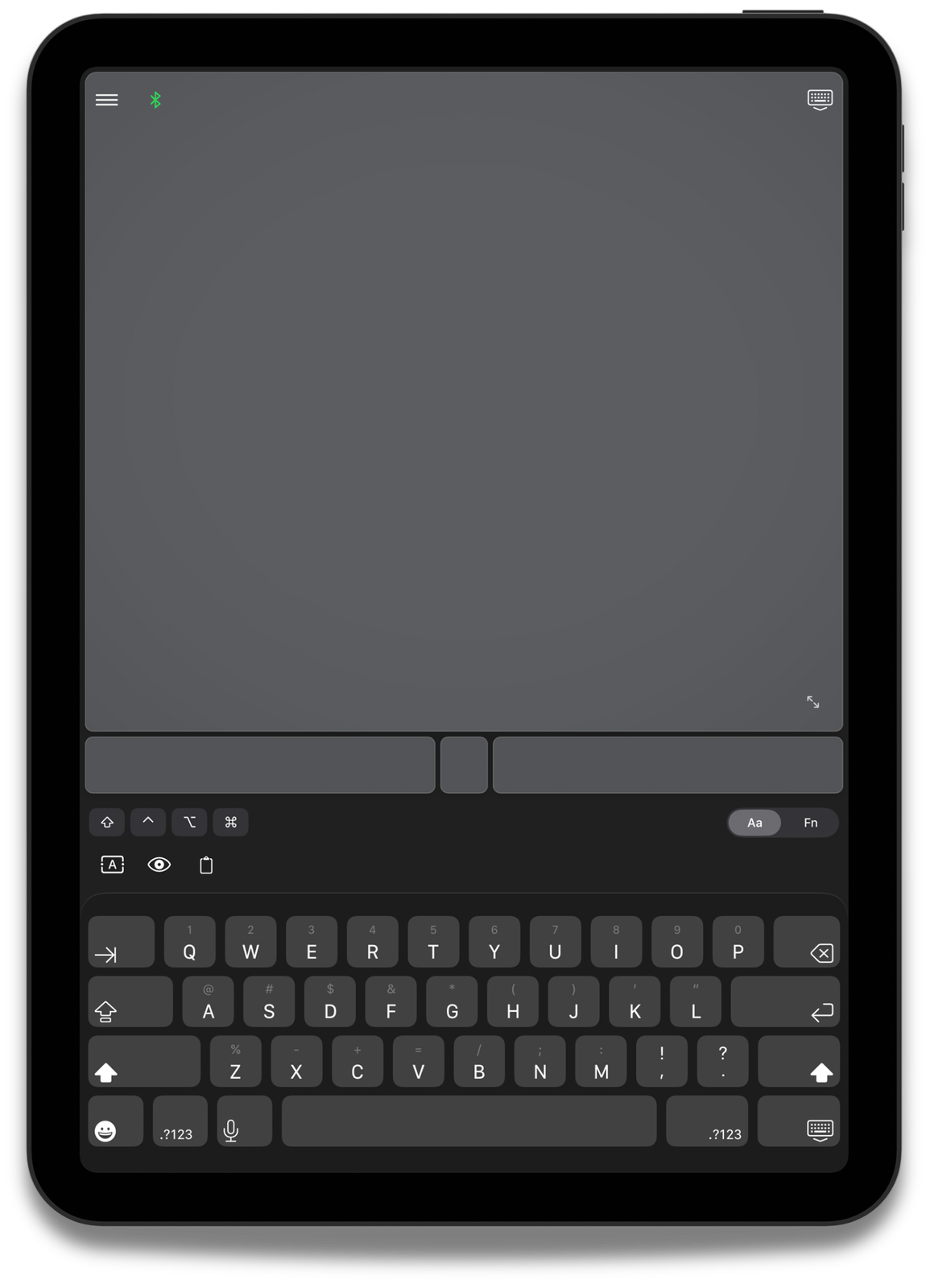
- Wait for the connection indicator, then move a finger on the trackpad and test the keyboard.
Devices signed into the same iCloud account may pair without a confirmation prompt. See the iPad connection guide for details.
What you can control
Move the iPad pointer, click, scroll and type using your iPhone. This is useful when your iPad is on a stand or connected to a display and you want a separate control surface. Gesture behavior depends on the target device and app.
Mouse control is not screen sharing: you still look at the iPad or its connected display. It also differs from connecting a physical Bluetooth mouse to your iPhone—the iPhone is the controller here.
If the iPad does not appear
Keep the target iPad on its Bluetooth settings screen. Check whether it was already added in the Mobile Mouse device list. If an old pairing is preventing reconnection, follow the pairing reset instructions before trying again. Unlock the iPad after a restart.
Do you need the USB dongle?
No dongle is needed for direct Bluetooth control of a compatible iPad. The optional dongle is a separate route for devices that accept USB mouse and keyboard input. Use the version comparison to avoid buying hardware you do not need.
Find your connection.
See what each version needs, then follow the setup for your device.
Compare versions Get connection help →