Choose your connection
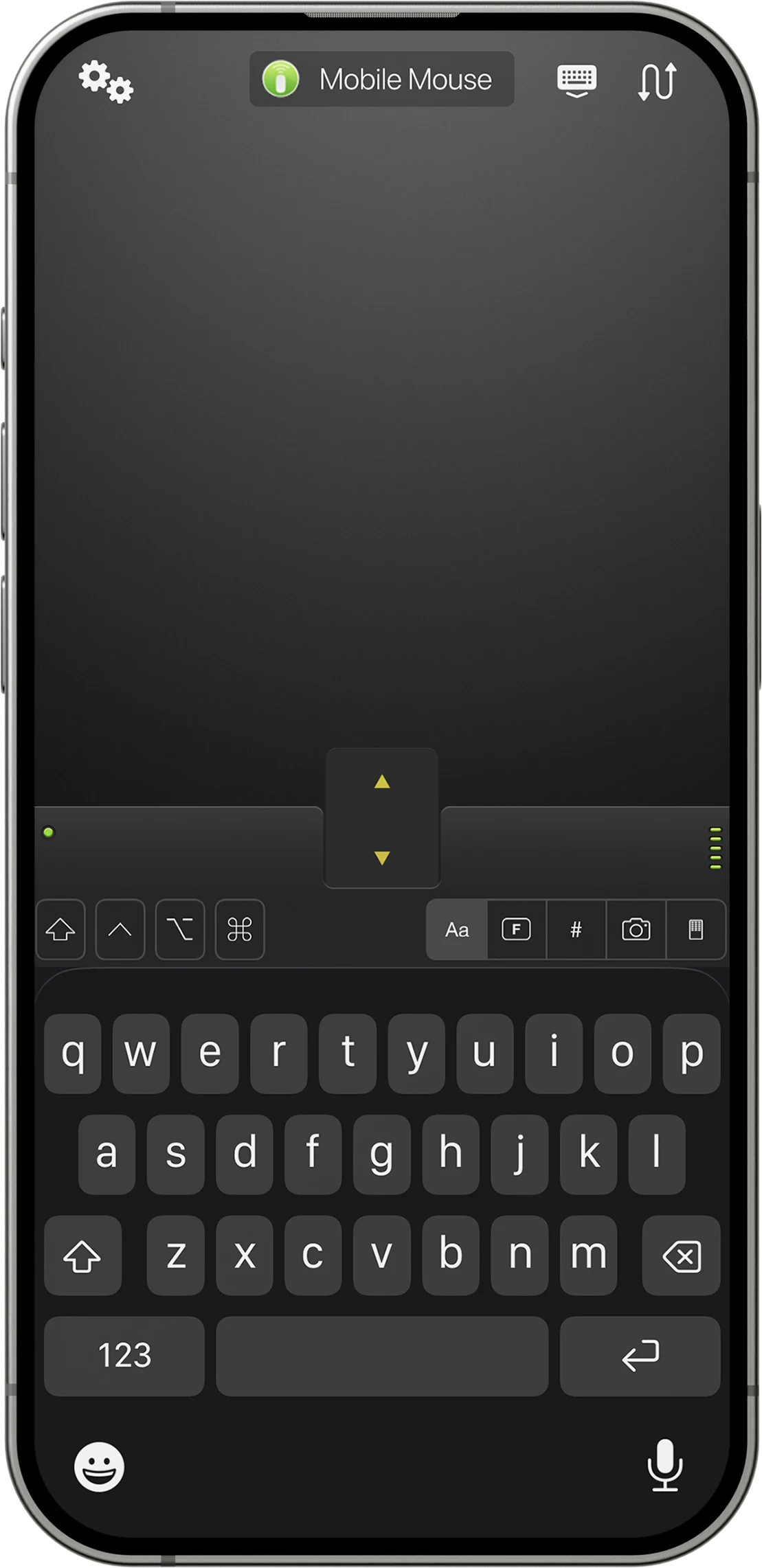
Mobile Mouse Wi-Fi connects through Mobile Mouse Server on your Mac. It includes application-aware controls, file browsing and presentation remotes. A local Wi-Fi connection does not need internet access.
Mobile Mouse Bluetooth pairs directly with a compatible Mac as a mouse and keyboard. It needs no companion software or Wi-Fi network. Its controller requires iOS/iPadOS 17.6 or later; the Mac requires macOS 13 or later. Check the current App Store requirements before downloading.
Set up Wi-Fi control
- Install Mobile Mouse on your iPhone.
- Install Mobile Mouse Server on your Mac and leave it running. For older Macs, use the appropriate download in our Mac setup guide.
- Open System Settings → Privacy & Security → Accessibility and allow Mobile Mouse to control your Mac.
- Connect your iPhone and Mac to the same private network. Open the iPhone app and select your Mac from the server list.
- Move one finger on the trackpad, tap to click and use two fingers to scroll.
Connect directly with Bluetooth
- Open Mobile Mouse Bluetooth on your iPhone or iPad.
- Open the app settings, tap Add Device and choose the device type.
- Select your Mac when it appears and complete any pairing prompts.
- Wait for the connection indicator to turn green, then test the pointer and keyboard.
Keep your Mac nearby, awake and unlocked during setup. See the Bluetooth Mac instructions for connection details.
Connected, but the pointer will not move?
For Wi-Fi, check the Mac’s Accessibility permission first. If your Mac does not appear at all, confirm that the server is running and that a guest network, VPN or firewall is not separating the devices. For Bluetooth, check the saved pairing and the connection indicator. Follow the guide for the version you installed rather than installing an unnecessary server.
Which option works away from home?
Direct Bluetooth works within Bluetooth range without Wi-Fi. The Wi-Fi app also supports Mac peer-to-peer connections; enable that only when needed. Cloud Access is a separate internet connection option and requires an active subscription and an online computer. Compare the three Mobile Mouse versions before choosing.
Find your connection.
See what each version needs, then follow the setup for your device.
Compare versions Get connection help →