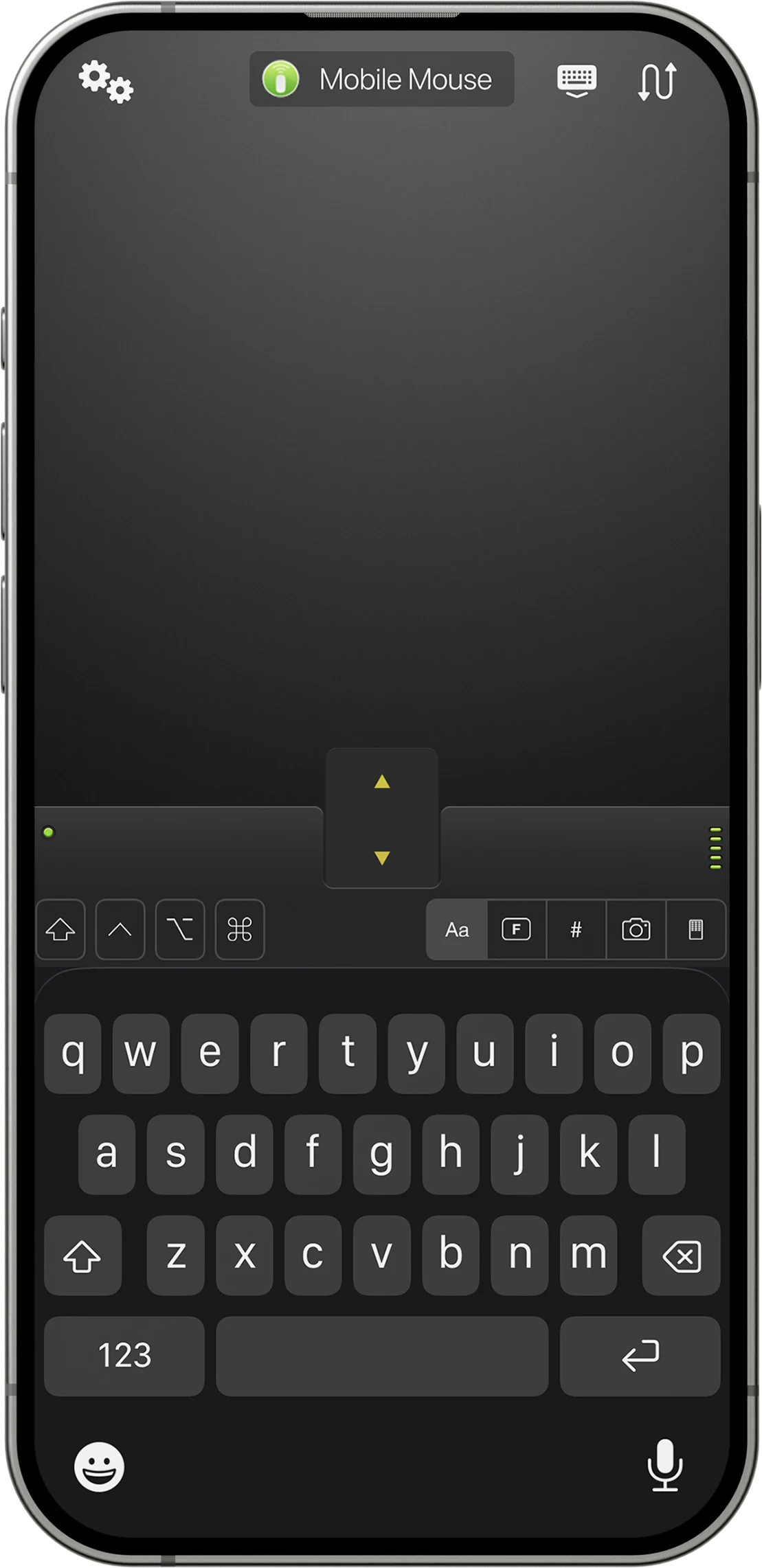
What you need for Wi-Fi
You need the Mobile Mouse iPhone app, Mobile Mouse Server on a Windows 10 or newer PC, and a network that lets the two devices communicate. Your PC may use Ethernet while the phone uses Wi-Fi, provided both connect through the same local network.
This controls the PC’s pointer and keyboard; it does not mirror the Windows screen onto your phone.
Connect your iPhone to your PC
- Download Mobile Mouse for iPhone.
- Download the Windows server, run the installer, and launch Mobile Mouse Server.
- Allow Mobile Mouse Server through Windows Firewall on your trusted private network. Leave the server running in the system tray.
- Open the phone app and select your PC. If discovery does not find it, use the IP address and port displayed by the server.
- Test pointer movement, clicking, scrolling and typing in a text field.
Use Bluetooth without a Windows server
On a compatible PC, Mobile Mouse Bluetooth connects directly without companion software. Start Add Device in the phone app. In Windows, open Settings → Bluetooth & devices → Add device → Bluetooth, select the name shown in the app, and accept the pairing prompts.
Windows reconnection: avoid force-quitting the phone app while connected. If pairing stops reconnecting, remove the saved connection on both devices and pair again. The Windows Bluetooth guide explains the full recovery steps.
When a USB dongle makes sense
Mobile Mouse USB uses a Bluetooth-to-USB dongle plugged into your PC. The phone talks to the dongle over Bluetooth; the PC receives USB mouse and keyboard input. No Mobile Mouse server is needed. BIOS or login-screen control depends on the PC accepting that USB input at the relevant screen.
Troubleshoot a missing computer
Check the system-tray server icon, the selected private network and Windows Firewall permissions. Guest networks often isolate connected devices. Temporarily switching to a trusted network can help identify the cause; do not disable your firewall as a general fix. Use our connection troubleshooting guide for the next step.
Find your connection.
See what each version needs, then follow the setup for your device.
Compare versions Get connection help →