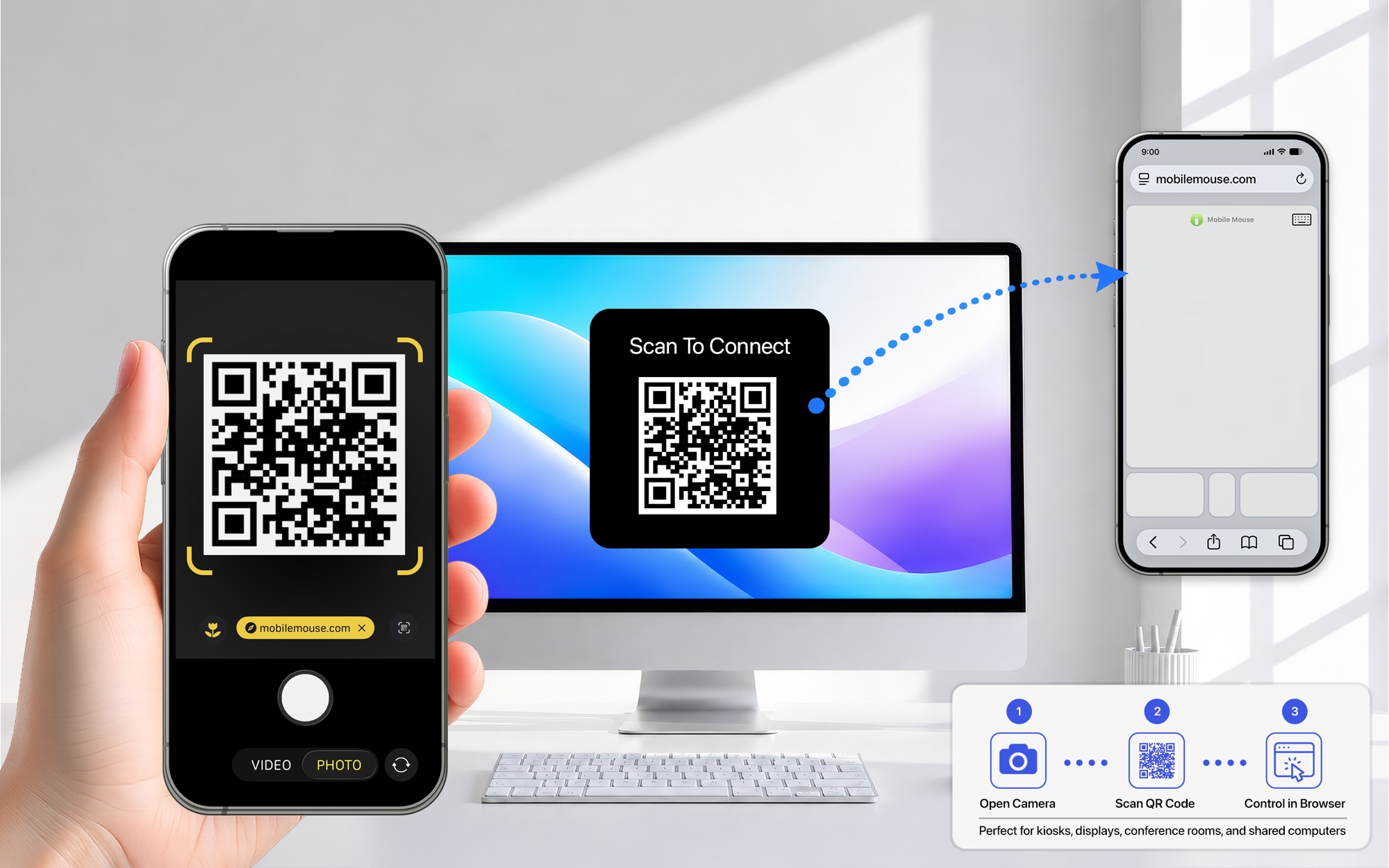
What “no mobile app” means
The browser is the control surface. Mobile Mouse Server on the computer receives the input and controls the pointer. Opening an ordinary website cannot give it control of an arbitrary computer: start a Web Remote session on the computer you want to control.
Use a server version that includes Web Remote. On Mac, this feature requires macOS 10.15 or later, an internet connection, sign-in and eligible Cloud Access. This guide describes the Mac menu; availability and controls can vary with server version.
Open the browser trackpad
- Install and open Mobile Mouse Server on your Mac. Allow Accessibility access so it can control input.
- Sign in to your Mobile Mouse account and confirm that Cloud Access is active.
- Open the Mobile Mouse menu and choose Show Web Remote QR Code….
- Scan the code with your phone’s camera and open the link in the browser.
- If the session requests a password, enter the password configured for that session. Then use the trackpad and keyboard controls.
Keep access under your control
Only share a session link or QR code with people you want to control the computer. Keep the server running while using the remote. Session settings may limit access or require a password; use those controls for shared devices. Close or end access when you finish.
If a QR code or connection is unavailable
Check that your installed server includes the Web Remote command, that you are signed in and that your account has the required access. Keep both the phone and computer online. If the page opens but input does not work on Mac, check Accessibility permission. If your server does not offer Web Remote, use the native app setup or contact support with your server version.
Need control without internet?
Web Remote uses an internet-backed session. For offline use, choose the native Wi-Fi app on a working local network, direct Bluetooth, or the USB dongle version. “Online mouse,” local Wi-Fi control and Bluetooth control have different requirements; compare the options before choosing.
Find your connection.
See what each version needs, then follow the setup for your device.
Compare versions Get connection help →